Powered By Blogger

Tuesday, June 30, 2015

5 Ways to Make Your WiFi Network Safer, Faster, and More Reliable

1. Get the app.Changing WiFi router settings is strictly a pastime for network engineers and other incurable geeks. Fortunately, most major routers come with free mobile applications and/or phone-friendly websites that make it easier to manage users and devices on your home network. Most let you set up guest networks for visitors, add parental controls, manage media files, and prioritize bandwidth so it goes to the devices that need it most — like the set-top box attached to your big-screen TV.
5 Ways to Make Your WiFi Network Safer, Faster, and More Reliable
Netgear’s Genie app puts control of your home network in your pocket.
Some, like PowerCloud’s Web app or Netgear Genie, are both powerful and easy to use; others are a total pain in the apps (Linksys Smart Wi-Fi, I’m talking to you). But generally speaking, it’s easier to use an app than typing your router’s IP address (192.168.1.x) into your browser and gnawing on obscure networking acronyms like “DHCP” or “DDNS.”
2. Lock it down.Control panels for new routers typically come with a default username (usually “admin” or blank) and password (often “password” or “admin”). You can usually find these settings inside the mobile app or via the router’s Web interface; look for settings labeled “Wireless Security.”
Change your username and password to something less brain-dead, and then write the new ones down on a sticky note attached to the bottom of the router. If you’re worried about internal security threats — if, say, there are teenagers in the house — you’ll probably want to keep it in your wallet or desk.
Otherwise, any malicious geek within range of the router can gain complete control over your network, lock you out of it, and make your life a living hell. If that does happen (or you forget your admin log-on) you can usually press a button on the router to do a factory reset and start over.
3. Change the name.You’ve switched up the username and the password on the panel that lets you control your Internet; now you’ll want to do the same for the public-facing WiFi itself.
You’ll want to change your network’s service set identifier (SSID), better known to normal humans as its name, from the default setting, typically the name of the manufacturer. For added security, you can tell your router to not broadcast the name, so that strangers won’t be able to find it. The downside? Every time you want to add a new device to your network, you’ll have to type in the SSID yourself (so write it down on that Post-it along with your admin log-on).
4. Pick a password.Wait, you’re not done. You also want to encrypt the traffic flowing across your network to keep random strangers from freeloading on your WiFi network or, worse, using a network sniffer or packet analyzer to capture your data as it comes beaming out of the router. Some routers come with preset passwords; if yours does, you’ll want to change the default. If it doesn’t, you’ll need to add one.
image
All WiFi routers let you choose a strong password, using a mobile app or a Web interface like this one from Linksys.
You’ll have a choice of password type; choose WPA/WPA2 Personal and AES encryption. No need to burn brain cells wondering these things mean; just pick them and move on. If you can manage it, choose a password that is inscrutable yet memorable, and not too painful to type using a TV remote or onscreen keyboard (because you may be doing that a lot).
5. Boost the signal.WiFi signals are mysterious and unpredictable things. Their strength will vary depending on the building materials inside your home, interference from other devices, the movements of people inside the room and, sometimes it seems, the phases of the moon.
Generally speaking, you’ll get more reliable coverage using devices that live inside the 5 GHz spectrum, because there’s less interference. The newest 802.11ac routers also tend to have a bit more range because they use something called beamforming to send signals directly to devices instead of in all directions at once, notes Vijay Nagarajan, director of mobile computing wireless connectivity for chipmaker Broadcom.
image
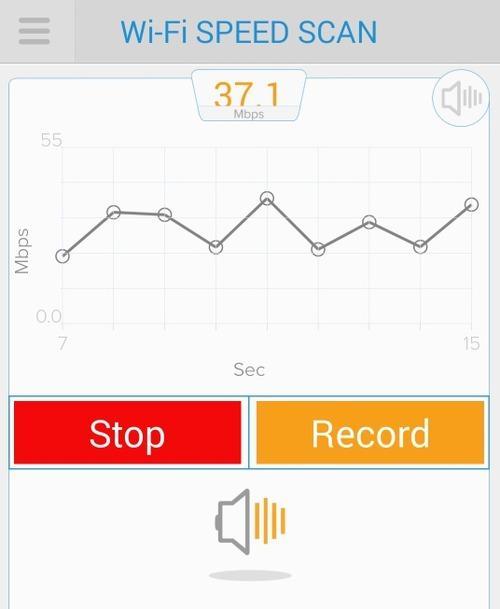
Assia’s free Cloudcheck app lets you map out where the WiFi signals are strongest in any room of your house.
Still, where you put your router will have a significant impact on whether the WiFi signal goes where you want it to — like the rec room downstairs or your bedroom upstairs. A high shelf, centrally located in your home and away from other electronics, is usually the best place to put one. Assia’s Cloudcheck mobile app can measure your WiFi speeds as you walk around your house and help you map the dead spots, letting you experiment to find the best place for your router.

8 Tips to Improve Your WiFi Network Performance

. Get up to speed.First, let’s go over some basics. (If you’re already a WiFi wonk, you can skip this paragraph.) WiFi does not actually mean “wireless fidelity.” Its real name is a number: 802.11, the tech standard for wireless networks first established by the Institute of Electrical and Electronics Engineers (IEEE) in 1997. That number is always accompanied by a letter (like a, b, g, or n) that indicates which version it is. Generally speaking, each new version of 802.11 is faster and more reliable than the last, but “higher” letters don’t always mean faster speed. For example, 802.11a is faster than 802.11b. Go figure.
2. Prepare to pony up.The newest WiFi standard, 802.11ac, is roughly three times faster than the previous champ, 802.11n. In geek-speak, each 802.11ac antenna can move up to 1,300 megabits of data per second (vs. a max of roughly 450 megabits for n). So I’ll just get this out of the way: The easiest and fastest way to get more performance out of your WiFi network is to buy a new 802.11ac router.


That’s especially true if you haven’t bought a router recently. Technology has changed a lot over the past two years, and devices built to work with 802.11ac (like the iphone 6 plus-6are coming out every day.
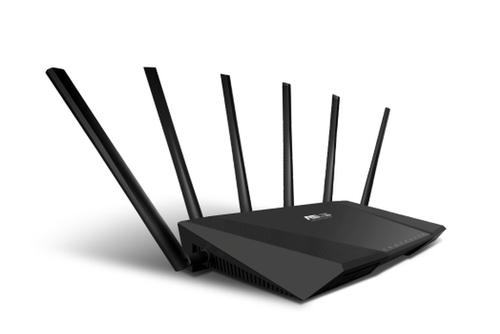
ASUS RT-AC3200 router
The ASUS RT-AC3200 features six — count ’em, six — antennas, for a maximum theoretical throughput of 3,200 megabits per second.ASUS
Older phones and laptops will work fine with newer routers, though they won’t be able to take advantage of the speed or other new features.
But the best 802.11ac routers aren’t cheap. You can expect to drop from $100 to $300 on a new one. (Or, if you’re a T-Mobile customer, you can get a free personal cellhot spot that’s really an ASUS ac router.)
But even with an older router, there are things you can do to squeeze better performance out of your existing gear.

 Find the right spot.Start by making sure you’ve put the router in the optimal place. Remember, WiFi signals hate water. They’re also not too crazy about metal, glass, brick, insulation, and human bodies; all these materials can impede the signal, notes Sandeep Harpalani, director of product marketing for router maker Netgear  For the fastest, most reliable connection, put your router in an open space, as centrally located and as high off the floor as you can.

 Measure your signal strength.Just a couple of feet can make the difference between strong and wimpy WiFi reception. Mobile apps like Assia’s Cloudcheck or Amped Wireless’s Wi-Fi Analytics Tool let you walk through your home and identify dead spots, so you can figure out the best places to put your WiFi devices.
Screenshot from Assia’s Cloudcheck app
Assia’s Cloudcheck app lets you know how your WiFi signal fluctuates. It even beeps like a Geiger counter when coverage is strong.
Messing with the antennas may help.If your router has adjustable antennas, changing their angle can redirect the signal and cover dead spots. Feeling crafty? Freeantennas.com offers instructions on how to make a parabolic reflector out of card stock and attach it to the antenna to boost the signal (although a directed antenna like that will make the sweet spot extremely narrow.)
If you have a new 802.11ac router, though, you probably won’t need this. They use a technique called beamforming to focus the signal toward devices on the edge of your network, notes Richard Najarian, senior director of wireless connectivity for Broadcom, which makes chipsets for wireless routers and other devices.

 Try changing the channel.
Older WiFi routers are prone to interference from other devices operating in the same spectrum — which sadly includes microwave ovens, many cordless phones, Bluetooth headsets, or your neighbors’ wireless networks. Usually the router’s default settings work fine, but if your wireless signal seems flaky, you can dial up your router’s administration page and change the channel to see if things improve.
Mobile apps like WiEye for Android let you view all the wireless nets nearby to see what channels they’re on. (Sorry, iPhone fans — Apple has banished WiFi scanners from the iTunes Store; you’ll have to rely on a desktop app like WiFi Scanner for Mac or WiFi Channel Scanner for Windows.)
Most routers can use 11 channels (specific radio frequencies) and are set at channel 1, 6, or 11 by default, because these frequencies don’t overlap with one another. (So if your neighbor’s network is broadcasting on 6, set yours at 1 or 11 to avoid interference.) Routers that operate in the 5 GHz range (802.11a, n, and ac) broadcast across 23 channels and are less prone to interference, so there’s less need to futz with the channel settings.
You can go into your router’s Web control panel to change channels; you may also be able to use a router-specific app like NETGEAR genie or Cisco Connect Express.
7. Use both bands.
Many routers have radios that operate on two frequencies, roughly 2.4 GHz and 5 GHz (each channel works on a specific frequency near that). So you can have two separate networks running at the same time, one for devices that access WiFi at the lower frequency and another for those that connect at 5 GHz. The higher band is less crowded and better for high-bandwidth uses like streaming video, says Joseph Yarak, director of marketing for Quantenna Communications, a WiFi chipset maker.
8. Use wires when possible.As fast as the newest WiFi standard is, a wireless connection still isn’t as fast or reliable as a standard wired one. When possible, connect bandwidth-hungry devices that stay in one location — like your Roku streaming media boxes or Xbox gaming consoles — directly to your router via networking cable, and save the wireless connections for the stuff that moves around.

Join our New Facebook group Page

Comptia Certification, to get updated News or copy and paste to URL  https://www.facebook.com/groups/720939221366838/

Friday, June 19, 2015

How to test your home Internet connection speed


Testing your Internet connection's performance is a straightforward exercise. You don't need any extra software—all you need is a computer with a Web browser. But there are also a few things you can do to make sure you are getting the most accurate reading of your Internet connection. Here's what to do.

Get ready

For best results, you want to use a wired connection if at all possible; that way, you don't have to worry about interference and performance fluctuations that can occur while you're on Wi-Fi. If you have any other wired devices on your home network, plug your test computer directly into the modem so those don't interfere in your testing.


If you're stuck using Wi-Fi—say, you have a MacBook Air or a tablet or some other device that doesn't have an Ethernet port—do what you can to minimize interference. Make sure your Wi-Fi router is away from other electronic devices like cordless phones, and temporarily disconnect any other devices from your Wi-Fi network—after all, you don't want another computer on your network to download a gigabyte worth of software updates while you run your tests.
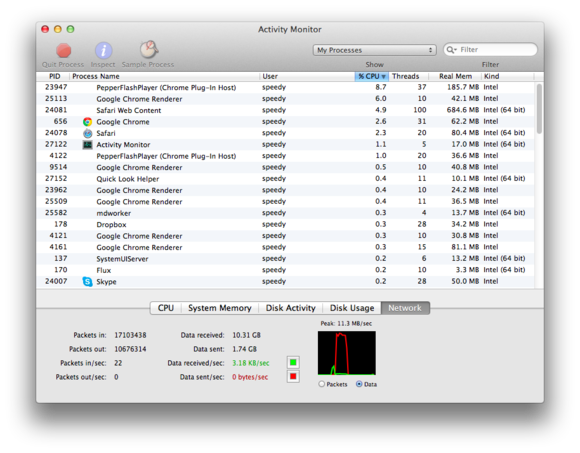
Check your computer's activitiy viewer to see if something on your computer is hogging your bandwitdh.
While you're at it, double-check to make sure your computer isn't downloading something in the background. Check the Task Manager on Windows (summoned by pressing control-alt-delete) or Activity Monitor on OS X, and look for network statistics (it's labelled "Network"on OS X, "Networking" on Windows). Close or quit all apps on your computer to keep apps from downloading software updates while you test your connection. Your bandwidth usage may not drop to zero and stay there, but you want it as close to zero as it'll get. If your operating system is downloading updates, there isn't much you can do aside from wait and test your connection later.
If you're having any problems with your connection, now is a good idea to reset your modem and router. Switch them off and unplug them for a few moments, then plug them back in and switch them on.

Test your connection

Ookla's Speedtest.net is the go-to site to test your Internet connection; all you need is a Web browser with JavaScript turned on (it usually is unless you switched it off) and Adobe Flash installed. If you get a message telling you to use a faster browser, ignore it;  Web browsers may affect how quickly a webpage renders, but it has nothing to do with your connection speed.
Press the green button and Speedtest.net does the rest.
All you have to do at this point is click the green "Begin Test" button, and Speedtest.net will check both your download and upload speed. This may take anywhere from a few seconds to a few minutes, depending on your network speed.
Speedtest.net isn't your only option for testing your connection; MegaPath (formerly Speakeasy) also offers a speed test, as well as what it calls Speed Test Plus, which tries to test the quality of your connection in addition to its raw speed. Your ISP might also offer a speed test tool, though you may need to do a little poking around for it.
NetSpeedMonitor will keep an eye on your Internet connection's performance.
If you want to track your connection's performance on a more ongoing basis, consider installing a utility like NetSpeedMonitor: This free tool for Windows XP, Vista 7, and Server 2003 lives in your taskbar, and will give you information on your connection's upload and download speeds. On OS X, the free MenuMeters utility will do much the same, though it will also track other aspects of system performance.

Solve problems

If your connection isn't as fast as you expect it to be, a lot of different factors could be coming into play. It could be a problem with your equipment, or it could be an issue on your ISP's end. For what to do next, see Lincoln Spector's tips on how to address a slow Internet connection. If your connection is fine but you want to tinker with it to try and get the most out of it, you can try changing your DNS server. This takes a little bit of effort, but with the right tools and a little patience, you can get a nice performance boost.

The Best Antivirus for 2015

When hackers break into government servers to steal your personal data, there's not a darn thing you can do about it. Protecting those servers isn't your job. What you can do is ensure that your own devices are protected against data-stealing Trojans and other sorts of malware by installing antivirus protection. Which antivirus should you use? We'll help you decide.
Data-stealing Trojans aren't the only type of attacker your antivirus will block. Despite the name, these utilities protect against a huge range of malicious programs, including ransomware, spyware, adware, keyloggers, rootkits, Trojans, actual viruses, and more. Fortunately, you can also find a huge range of products designed to fight these malicious programs. PCMag has reviewed over 30 different commercial antivirus utilities, and that's not even counting free antivirus tools. Ten of the premium editions proved effective enough to earn an excellent four stars or better. Another dozen earned at least three stars.
Almost all of these products are traditional, full-scale, antivirus tools, with the ability to scan files for malware on access, on demand, or on schedule. A couple are outliers, tools meant to enhance the protection of a traditional antivirus. As for just relying on the antivirus built into Windows 8.x, that's not such a good idea. According to both our tests and independent lab tests, Windows Defender won't keep you safe.
Name Webroot SecureAnywhere AntiVirus (2015) Bitdefender Antivirus Plus 2015 Kaspersky Anti-Virus (2015) F-Secure Anti-Virus 2015 McAfee AntiVirus Plus 2015
 
Lowest Price $19.99 Webroot $39.95 BitDefender $36.60 Amazon $39.99 F-Secure $39.99 Dell
Editor Rating          
Type Personal, Professional Personal, Professional Business, Personal, Professional Business, Personal, Professional Business, Personal, Professional
OS Compatibility Windows Vista, Windows XP, Mac OS, Windows 7, Windows 8 Windows Vista, Windows XP, Windows 7, Windows 8 Windows Vista, Windows XP, Windows 7, Windows 8 Windows Vista, Windows XP, Windows 7, Windows 8 Windows Vista, Windows 7, Windows 8
  Read the Review Read the Review Read the Review Read the Review Read the Review
Listen to the Labs
I take the results reported by independent antivirus testing labs very seriously. The simple fact that a particular vendor's product shows up in the results is a vote of confidence, of sorts. It means the lab considered the product significant, and the vendor felt the cost of testing was worthwhile. Of course, getting good scores in the tests is also important.
Note, though, that good scores must be obtained honestly, or else there's no point in testing. Recently, several prominent labs revealed that one vendor had deliberately weakened protection to get a better performance score. PCMag doesn't condone any kind of chicanery aimed solely at raising test scores. Another vendor supplied a different version for testing than the one ordinary users could download. The labs should now be testing precisely the same version as the one users can download; we'll see what happens.
I follow six labs that regularly release detailed reports: West Coast Labs, Virus Bulletin, ICSA Labs, Dennis Technology Labs, AV-Test Institute, and AV-Comparatives. Tests by the first three are based on simple threat-recognition, while the last three attempt to simulate real-world malware-attack scenarios. I've devised a system for aggregating their results to yield a rating from 0 to 5.
I also subject every product to my own hands-on test of malware blocking, in part to get a feeling for how the product works. Depending on how thoroughly the product prevents malware installation, it can earn up to 10 points for malware blocking.
I also test each product using 100 extremely new malware-hosting URLs, noting what percentage of them it blocked. Products get equal credit for preventing all access to the malicious URL and for wiping out the malware during download.
Some products earn absolutely stellar ratings from the independent labs, yet don't fare as well in my hands-on tests. In such cases, I defer to the labs, as they bring significantly greater resources to their testing.
Multi-Layered Antivirus Protection
Antivirus products distinguish themselves by going beyond the basics of on-demand scanning and real-time protection. Some rate URLs that you visit or that show up in search results, using a red-yellow-green color coding system. Some actively block processes on your system from connecting with known malware-hosting URLs, or with fraudulent (phishing) pages.
Software has flaws, and sometimes those flaws affect your security. Prudent users keep Windows and all programs patched, fixing those flaws as soon as possible. The vulnerability scan offered by some antivirus products can verify that all necessary patches are present, and even apply any that are missing.
You expect an antivirus to identify and eliminate bad programs, and to leave good programs alone. What about unknowns, programs it can't identify as good or bad? Behavior-based detection can, in theory, protect you against malware that's so new researchers have never encountered it. However, this isn't always an unmixed blessing. It's not uncommon for behavioral detection systems to flag many innocuous behaviors performed by legitimate programs.
Whitelisting is another approach to the problem of unknown programs. A whitelist-based security system only allows known good programs to run. Unknowns are banned. This mode doesn't suit all situations, but it can be useful. Sandboxing lets unknown programs run, but it isolates them from full access to your system, so they can't do permanent harm. These various added layers serve to enhance your protection against malware.
Bonus Features
Firewall protection and spam filtering aren't common antivirus features, but some of our top products include them as bonus features. In fact, some of these antivirus products are more feature-packed than certain products sold as security suites.
Among the other bonus features you'll find are: secure browser for financial transactions; secure deletion of sensitive files; wiping traces of computer and browsing history; credit monitoring; virtual keyboard to foil keyloggers; and more. And of course I've already mentioned sandboxing, vulnerability scanning, and application whitelisting.
What's Best?
Which antivirus should you choose? Webroot SecureAnywhere Antivirus (2015) is the tiniest antivirus around, though its unusual detection technique doesn't jibe with some lab tests. The independent labs uniformly heap praise on Kaspersky Anti-Virus (2015). Bitdefender Antivirus Plus 2015 also gets plenty of love from the labs, and in AutoPilot mode it stays out of your way. We've named these three Editors' Choice for commercial antivirus, but they're not the only good choices. Read the reviews of our top-rated products, then make your own decision.

FEATURED IN THIS ROUNDUP
bitdefender logo
Bitdefender Antivirus Plus 2015

$39.95
$39.95 at BitDefender Few products score better in independent lab tests than Bitdefender Antivirus Plus 2015, and it totally aced our own antiphishing test. On top of that, it offers significant tools to enhance your privacy and system performance. This feature-rich tool remains an antivirus Editors' Choice. Read the full review ››


Kaspersky Anti-Virus (2015)

$39.95
$36.60 at Amazon Kaspersky Anti-Virus (2015) made a clean sweep, earning top marks from all of the independent antivirus test labs. It's a new Editors' Choice for antivirus protection.


webroot logo
Webroot SecureAnywhere Antivirus (2015)

$39.99
$19.99 at Webroot Two independent testing labs have given Webroot SecureAnywhere AntiVirus (2015) their top ratings, and it earned a perfect score in our hands-on malware blocking test. Add the fact that it's the smallest antivirus around and you've got a definite Editors' Choice.


Emsisoft
Emsisoft Anti-Malware 9.0

$39.95
$49.99 at Amazon Emsisoft Anti-Malware 9.0 focuses on the central task of fighting all kinds of malware. Independent lab tests and our own hands-on testing show that it does quite a good job.


F-Secure Anti-Virus 2015

$39.99
$39.99 at F-Secure F-Secure Anti-Virus 2015 skips the bells and whistles, instead focusing solely on antivirus protection. If that's the kind of tool you're looking for, it can be a very good choice.


Malwarebytes Anti-Exploit Premium

$24.95
$29.99 at eBay Malwarebytes Anti-Exploit Premium shields your system against exploit attacks, even never-before-seen zero-day attacks. Add this new layer of protection to your security arsenal. 


McAfee AntiVirus Plus 2015

$49.99
$39.99 at Dell McAfee AntiVirus Plus 2015 earns a new top score in our malicious URL blocking test, and it gets good ratings from the independent labs. It comes with a raft of useful bonus tools, though the bonus firewall seemed a bit wobbly in our testing.


Panda Antivirus Pro 2015

$39.99
$25.00 at Amazon Panda Antivirus Pro 2015 has the same excellent antivirus protection as Panda Free Antivirus 2015, plus a firewall and a handful of other features. Stick with the free edition for personal use, as the added features don't justify the cost (except for businesses, which can't use the free version). 


Trend Micro Antivirus+ 2015

$39.95
$25.32 at Amazon Trend Micro Antivirus+ 2015 has a completely new look, but the underlying protection hasn't changed. It's especially good at blocking fraudulent or malicious URLs, and includes spam filtering, firewall booster, and other bonus features.


VoodooSoft
VoodooSoft VoodooShield 2.0

$19.99
VoodooSoft's VoodooShield 2.0 supplements your antivirus by blocking execution of unknown files when you're in a risky state—online, or with a USB drive plugged in. The free edition does a great job of balancing protection and flexibility. Give it a try.


AppGuard

$29.95
AppGuard teams up with your existing antivirus to block never-before-seen zero-day malware. Unknown programs in folders commonly used by malware just can't launch, and programs that do run can't make changes to sensitive system areas. It definitely works, but you'll have to do some finagling to install or update valid programs.


Avast Pro Antivirus 2015

$39.99
Free at Avast Avast Pro Antivirus 2015 includes an innovative scan for home router security problems, as well as a hardened browser for financial transactions and a number of other useful tools. Even so, you'll be better off selecting one of our Editors' Choice antivirus products


AVG AntiVirus 2015

$39.99
$32.09 at Amazon Businesses that want to use AVG's antivirus technology can't use the free version; they must pay for AVG AntiVirus 2015. With the same amount of cash, however, you could purchase any of our three Editors' Choice antivirus products. 


ESET NOD32 Antivirus 8

$39.99
$39.99 at ESET North America The independent testing labs give ESET NOD32 Antivirus 8 generally high ratings, and it did a great job in our malicious URL blocking test. However, it bombed our hands-on malware blocking test and antiphishing test.


G Data Logo
G Data Antivirus 2015

$39.95
G Data Antivirus 2015 earned decent scores in our hands-on testing, and rated well with the independent labs that include it in their tests. However, our Editors' Choice products score even better with the labs. 


eScan
MicroWorld eScan Anti-Virus with Cloud Security

$29.95
$22.45 at Amazon MicroWorld eScan Anti-Virus with Cloud Security does well in testing, and it includes antispam and firewall protection as a bonus. It's good, just not up there with the best, and the inaccurate spam filter doesn't help things. 


Anti-Executable 5.2

$45.00
Anti-Executable 5.2 blocks execution of any program that isn't on its whitelist. It can definitely prevent installation of new malware, as long as you don't erroneously override its block. However, the average user may find managing its protection to be a chore.


IObit
IObit Advanced SystemCare Ultimate 8

$49.99
If you love tinkering with system utilities, IObit Advanced SystemCare Ultimate 8 has plenty to offer. However, its actual antivirus protection can't match that of our Editors' Choice antivirus tools


Kromtech PCKeeper Antivirus

$39.95
Kromtech PCKeeper Antivirus is attractive and easy to use, and it has chat-based help built right in. However, the chat-based help supplied misinformation during testing.


Malwarebytes Anti-Malware Premium 2.0

$24.95
Malwarebytes Anti-Malware Premium 2.0 combines the impressive malware cleanup abilities of the free-for-personal-use Malwarebytes utility with lackluster real-time protection and malicious URL blocking. Businesses buying it should consider pairing it with a more effective real-time antivirus.


Tiranium Premium Security 2014

$25.94
Tiranium Premium Security 2014 did well in my hands-on malware blocking test, but the independent labs haven't weighed in. The bonus firewall didn't do anything in our tests, though, and the quality of other features varied. It's a good first effort. 


Valt.X 'Absolute Security for Windows' Special Edition

$89.99
Valt.X 'Absolute Security for Windows' Special Edition rolls your system back to a safe, malware-free state on every reboot. However, any malware that does infest your system can run wild until the next reboot, and external actions like false bank transactions or transmission of personal data can't be rolled back.